How to use xAssist
This walks through the app from installing it to sharing a report. Set up your templates once, then tag or scout a match and work with the results.
Install the app and pick your mode
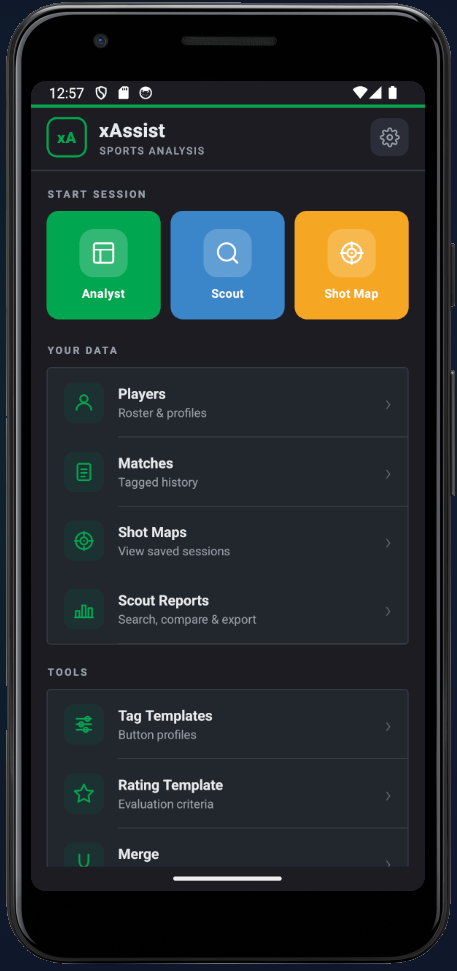
Download xAssist from Google Play (iOS is coming soon). On first launch you pick how you want to work, and you can switch any time from the home screen.
- Analyst mode logs every event of a match as it happens
- Scout mode is for fast, timestamped notes on players
- Shot Map mode plots shots on a pitch and goal mouth
- Everything works offline and your data stays on your device
Build a tag template
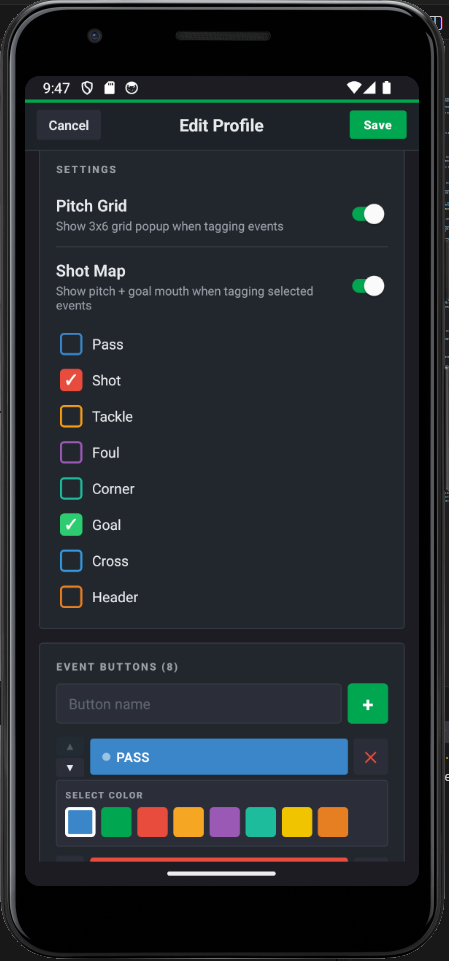
On the home screen, open Tag Templates and create a profile that matches how you analyse. A profile is the set of buttons you see during a session, so build it around your sport, your tactics or your role.
- Add event buttons like Pass, Shot and Tackle, and give each one a colour
- Add descriptors such as Accurate, Weak or Left foot to qualify an event
- Turn the Pitch Grid and Shot Map popups on or off per event type
- Set lead and lag time so events line up with your video
- Share a finished profile with teammates using a QR code
Define your rating template
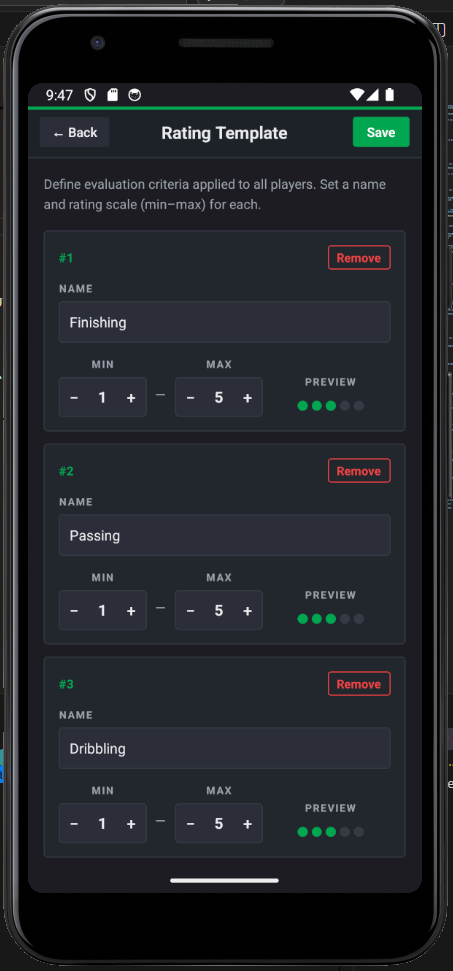
On the home screen, open Rating Template and set the criteria you score players on. The same criteria are used for every player and every session, and they appear in PDF reports.
- Name each criterion, for example Finishing, Passing or Dribbling
- Set a minimum and maximum for each one, such as 1 to 5 or 1 to 10
- Ratings show as a dot scale when you evaluate a player
Add your players
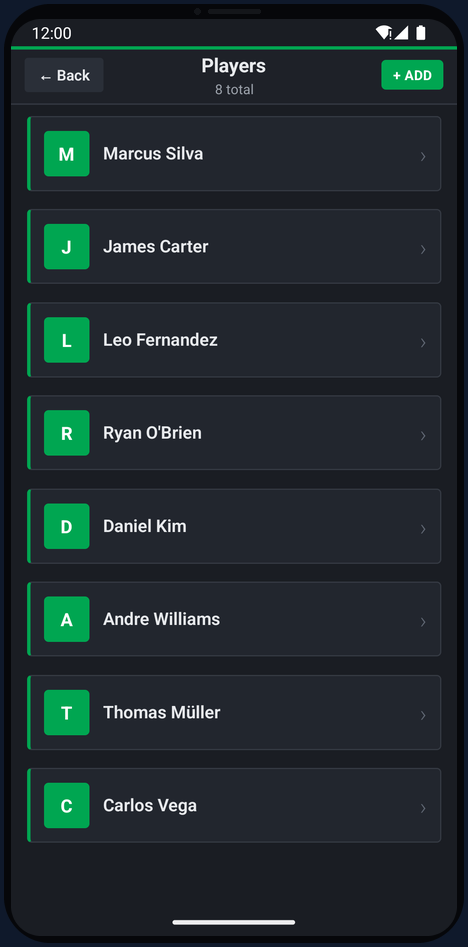
On the home screen, open Players and build the roster you tag against. Each player has a profile with a name, a position and an initials avatar, and the list stays searchable for large squads.
- Add players one at a time, or manage several squads under Teams
- Search the roster to assign events quickly during a match
- Swipe a player row to delete it, with a confirmation step
Tag a match live
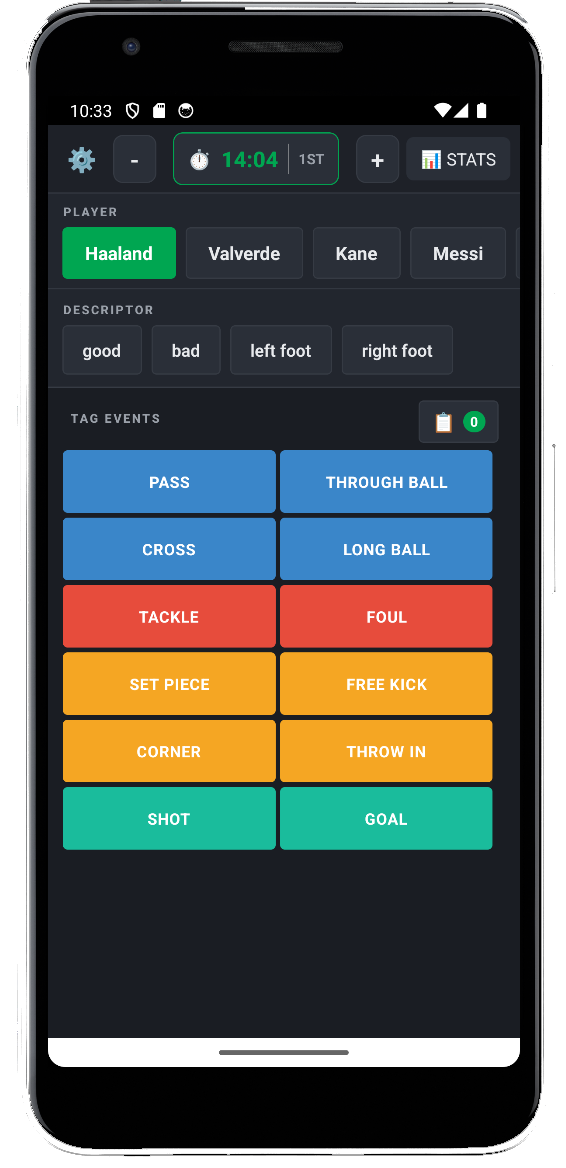
On the home screen tap Analyst, name the match and pick a tag template. The session timer starts and every tap is stored with its exact minute.
- Use the minus, plus and half controls to keep the clock in sync
- Pick the player, then a descriptor if you want one, then the event
- Add a note to any single event
- The session auto-saves every 2 seconds and the screen stays on
- Tap STATS at any point to see the match so far
Watch the live feed
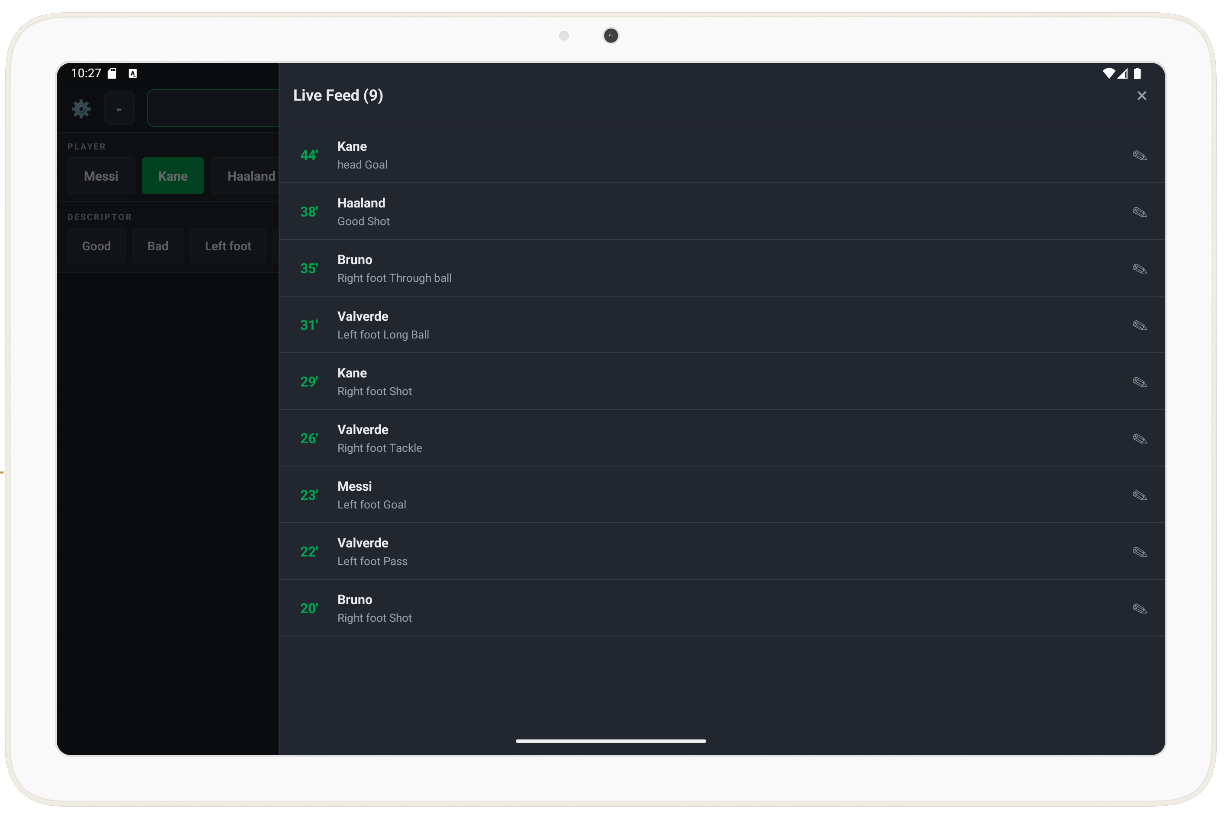
Open the live feed to see every event you have logged, newest first. Use it to check your tagging without losing focus on the game.
- Each row shows the minute, the player and the event with its descriptor
- Correct a minute or add a note without leaving the feed
- Delete an event you tagged by mistake
Scout with timestamped notes
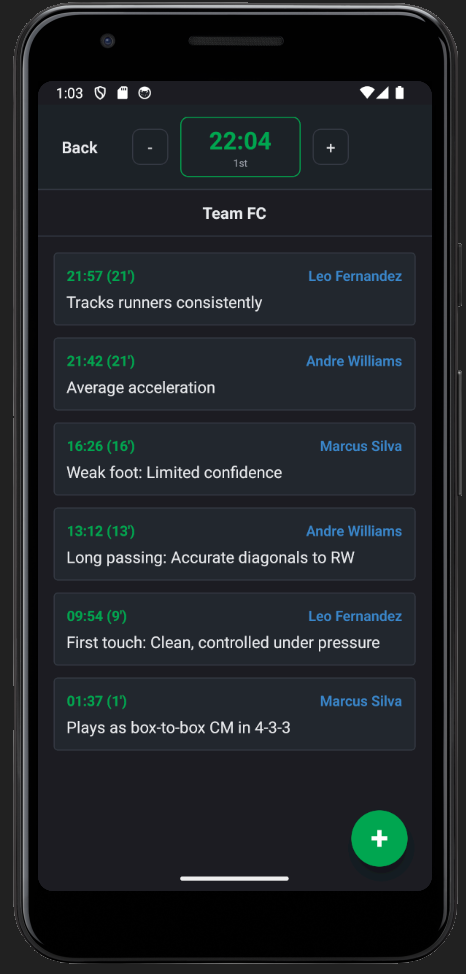
To follow a player without tagging every touch, start a Scout session instead. The match clock runs the whole time and every note is pinned to a minute and a player.
- Tap the plus button to add an observation against any player
- Pause and resume the session across app restarts
- Filter notes later by player, event type, half or date range
Read the match statistics
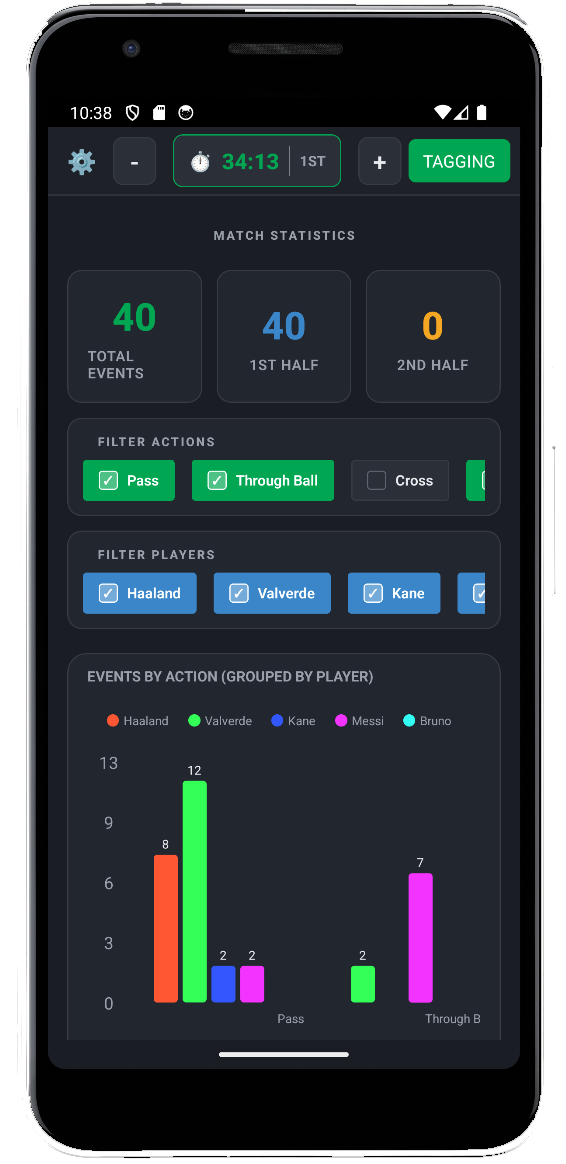
The Stats view shows your tags as totals and charts. Filter to the actions and players you care about and the numbers update straight away.
- Totals for the full match and for each half
- Filters for action type and for player
- A bar chart of events by action, grouped by player
- A pitch heatmap showing where play was concentrated
Revisit matches and export data
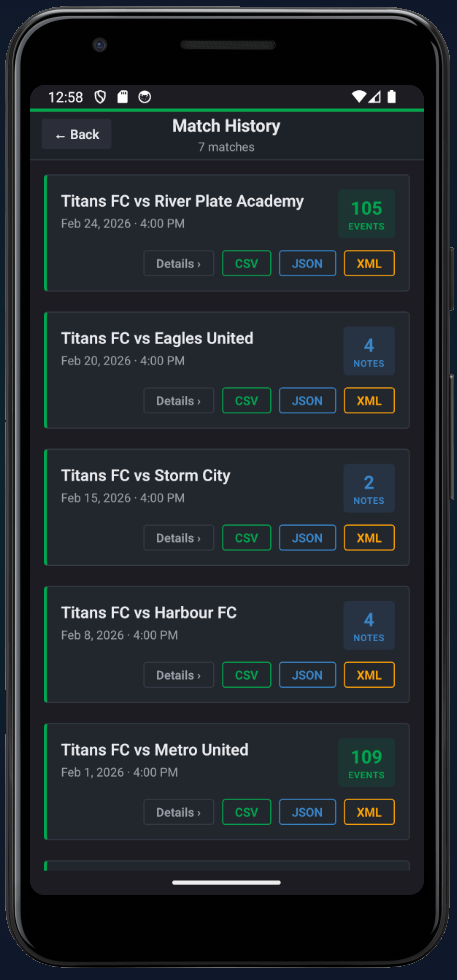
Every session is saved under Matches with its date and event count. Open Details for the full timeline, the per-player breakdown and the heatmap, or export straight from the list.
- CSV for spreadsheets, XML for SportsCode, JSON for raw data
- On Pro, generate a PDF scout report with charts, ratings and notes
- Exports are named with a timestamp and sent through the device share sheet
Share players and matches
Send a link to a match summary or a player profile and anyone can open it in a browser. Stats, ratings, event breakdowns, heatmaps and shot maps are all included.
- A shared match shows the timeline, heatmap and shot map
- A shared player shows ratings, event breakdown and performance
- On Pro, merge recordings from several analysts into one dataset first
Ready to analyse your next match?
xAssist is free to use, it works offline, and your data stays on your device.